How To Download & Use Your SolidPoint Point Cloud Survey
A practical, visual guide to your SolidPoint survey link and the data it contains.
Questions about your files? Call 01332 898350 or email projects@solidpoint.co.uk
Written by: C. Lawrence - Lead Data Processor
Published 9th September 2026
Download this guide as a pdf
In This Guide
Downloading Your Files From Sync
How To Download Your Survey
SolidPoint Sync is the online delivery area used to issue your survey. You can view the folders online and download individual files or folders to your computer.
Download Steps
- Open the SolidPoint Sync link supplied by our surveyors
- Open the folder for the deliverable you need
- Download the ZIP and extract it fully before using the RCP / RCS data
What Each File Is For
File Types
File names vary by project. This guide uses 'example_project' + the file type.
Unified Point Cloud
example_project.zip • .rcp / .rcs
Scan‐level reference. Download the ZIP, extract itfully, and keep the RCP with its supporting RCS files.
Reality Capture Viewer
example_project.lgsx
A navigable scan project for moving between scan positions and panoramic bubble views.
Reading and Understanding Your Survey Information
Using the Unified Point Cloud Data
Your Sync file will contain example_project.zip. You may also receive example_project.lgsx, which provides a more visual way to navigate the captured scan positions.
Step 1 - Download example_project.zip from the Point Cloud folder in Sync.
Step 2 - Extract the ZIP completely on your computer - do not work from inside the ZIP.
Step 3 - Keep example_project.rcp and its supporting .rcs files together in the extracted folder structure. Do not move individual .rcs files away from example_project.rcp.
Step 4 - Open example_project.rcp in Autodesk ReCap
FAQ - Why Is It Zipped?
A point cloud can contain many supporting files and can be very large. example_project.zip keeps the complete dataset together for download and transfer.
example_project.lgsx - The Navigable Scan Project
This is a Leica reality‐capture project. It is useful when you want to move between scan positions and inspect the panoramic bubble views and captured environment. A compatible Leica viewer such as TruView Desktop can be used to access LGSx projects.
Download TruView Desktop from the Leica Geosystems website.
Using ReCap
example_project.rcp
Moving Around
To rotate and orbit around the data - right click
To move around the data - click and drag with the scroller on your mouse
To zoom in and out - use the scroller on your mouse
ReCap Features & Functions
What the functions are and how to use them. Click images to maximise
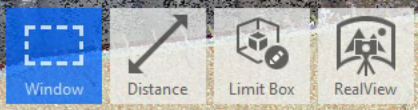
Function Bar
Left click to select and use the function highlighted in blue
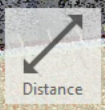
Distance
Use this tool to measure from one point to another. To use, simply select the tool, then click on your two points.
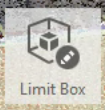
Limit Box
Use the Limit Box to bring up a box around your model. Using this tool, you can drag the box's faces inward to cut away walls or ceilings, allowing you to look inside a room or erase data outside that's not needed.
If you want to get rid of the limit box again, hover over the limit box icon and click “reset”
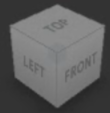
Angles Cube
Located in the top right of your screen. Use to view your dataset from specific angles.
Simply click the face of the cube that you'd like to see your point cloud from.

Mirror Balls
Click on a mirror ball to go straight into its representative scan to look around - similar to a 360 image.
While inside a scan, you can click on another mirror ball to move between scans.
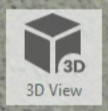
3D View
Located at the bottom of your screen while inside a scan. Click on this to return to the point cloud view.
Using TruView
example_project.lgsx
Moving Around
To move the floor plan around - right click and drag
To zoom in and out - use the scroller on your mouse
TruView Features & Functions
What the functions are and how to use them. Click images to maximise

Scan
Each point cloud scan has one of these red circles attributed to it. Click the scan you wish to look at.
To look around the scan - left click.

Mirror Ball
You'll see these while you're inside a scan. Click a mirror ball travel through scans.

Back To Floor Plan
This function will appear while you're inside a scan. Click it to return to the floor plan view.
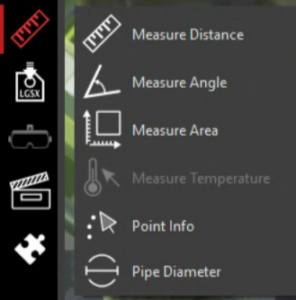
Measuring Toolbar
Use these to measure:
-
- Distance
- Angles
- Areas
- Pipe Diameter

Point Info
Use to see coordinates for any point you select.
Software to View Your Survey
Autodesk ReCap Pro
Used for viewing and working with point cloud data such as example_project.rcp.
Leica TruView Desktop
A compatible viewer for Leica reality‐capture projects such as example_project.lgsx.
Stay updated with us:
How Can SolidPoint Help Your Project?
At SolidPoint, we are passionate about providing accurate and efficiently collected data for our clients and have worked on numerous projects across the UK. If you are looking to commission a survey in your next project, please don’t hesitate to Get in touch with a member of our friendly team to discuss your requirements and get a free quote.
Alternatively, you can call us on 01332 898350 or email us at projects@solidpoint.co.uk for more information on our services. We look forward to hearing from you!
Give us a call on
Request a Free Quote






Trusted Suppliers for: