How To Download & Use Your SolidPoint 360 Tour
A practical, visual guide to your SolidPoint tour link, and how to use it to its full potential
Questions about your files? Call 01332 898350 or email projects@solidpoint.co.uk
Written by: C. Lawrence - Lead Data Processor
Published 23rd September 2026
Download this guide as a pdf
In This Guide
Downloading Your Files From Sync
How To Download Your Tour
Download Steps
- Click on the Sync link issued by your surveyor
- Navigate to the '360 Tour' folder
- Click on the 'EXE' file
- Download
How To View Your Tour
No software is needed to view your 360 tour.
To view the online version, simply click the link provided.
Follow these steps to open the downloaded version:
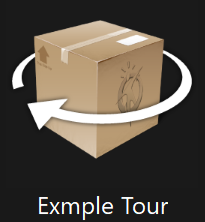
Step 1
Doble click on the EXE file and wait for it to extract.
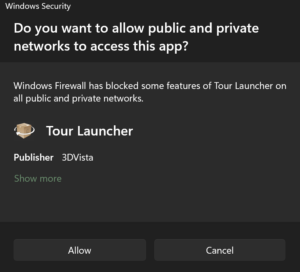
Step 2
This will pop up on your screen.
Click 'Allow' and your tour will open.
Reading & Understanding Your Information
Navigating Your Tour
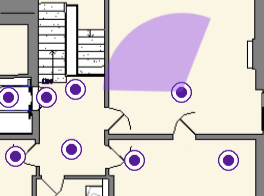
Floor Plans
Click on a hot spot to view the image.
While you're in the image:
-
- Click and drag to move around
- The radar on the floor plan will reflect the direction you're facing
- Zoom in and out with your mouse scroller
- Click and drag to move around
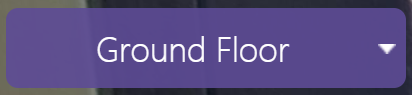
Dropdown Menu
Use this to see different floors / areas.
Features & Functions
Click images to maximise

Purple Hot Spot
360 images taken at eye level

Blue Hot Spot
360 images taken at a high level.
Most often used for photos taken above ceilings.

Green Hot Spot
360 images taken at a low level.
Most often used for photos taken on / below floors

Hot Spot Cluster
We create hot spot clusters when eye level, high level and/or low level images link together.
They will always be formatted as an eye level with high levels above and low levels below it.

Eye
Click the eye to hide anything that obstructs the full image, including:
-
- Logo
- Dropdown menu
- Floor plan

Logo
Use this to quickly navigate to our website.
Need Help?
Stay updated with us:
How Can SolidPoint Help Your Project?
At SolidPoint, we are passionate about providing accurate and efficiently collected data for our clients and have worked on numerous projects across the UK. If you are looking to commission a survey in your next project, please don’t hesitate to Get in touch with a member of our friendly team to discuss your requirements and get a free quote.
Alternatively, you can call us on 01332 898350 or email us at projects@solidpoint.co.uk for more information on our services. We look forward to hearing from you!
Give us a call on
Request a Free Quote






Trusted Suppliers for: