How To Download & Use Your SolidPoint CCTV Survey
A practical, visual guide to your SolidPoint survey link, file types and reports.
Questions about your files? Call 01332 898350 or email projects@solidpoint.co.uk
Written by: F. Wrzodak - Senior Land Surveyor
Published 21st September 2026
Download this guide as a pdf
In This Guide
Download Your Files From Sync
How to Download Your Survey
SolidPoint Sync is the online delivery area used to issue your survey. You can view the folders online and download individual files or folders to your computer.
Click images to maximise
Accessing Your Files
Once your survey is ready, you'll receive an email from our team.
Click the button labelled 'Access Survey Files' - this will direct you to your project folder on Sync.

Download Your Files
Click on the file type you'd like to download. You'll see 3 dots - click those and then 'Download'

What Each File Is For
File Types
File names vary by project. This guide uses placeholder information.

01 - DOCS
This folder contains anything that isn't a survey drawing, including:
-
- Desktop Surveys
- Written Report
- RAMS
- Quality Assurance Documents
02 - CAD
This folder contains any drawing in CAD format.
Use these files for editing or closer inspection.
03 - PDF
This folder contains all CAD drawings in PDF sheet format.
Use these files for quick access and easy sharing.
04 - CCTV
All of your CCTV files will show up in here.
Software to View Your Survey
Software Recommendations
To view our surveys, at the minimum an internet connection is required to download the PDF, which can be opened in most browsers.
To View PDFs
Some documents are submitted in Word Format, for ease of reading. This would need Microsoft Word, or Google Docs.
Alternatively, they can be converted using a Word-to-PDF converter for ease of access, although formatting may break.
To View DWG Files
.DWG files are autocad drawing files. They can be opened using AutoCAD, or BricsCAD -https://www.autodesk.com/uk/products/autocad/overview
They can also be viewed using AutoDesk Freeviewer, however this removes the editing aspect - https://viewer.autodesk.com/
How to Read The Drawings
Survey Drawing & Report Features
Important Note - The PDF report should be read in conjunction with the AutoCAD Drawing/PDF.
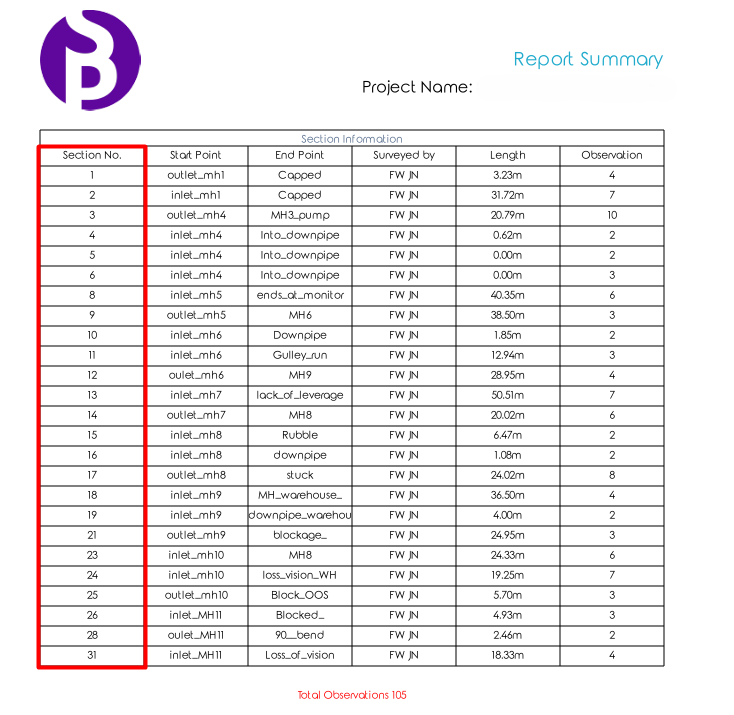
CCTV Surveys use the information from the utility survey (if available) to plot the runs and connections. It can also be used to relate to the sections associated with each run.
Click image to maximise
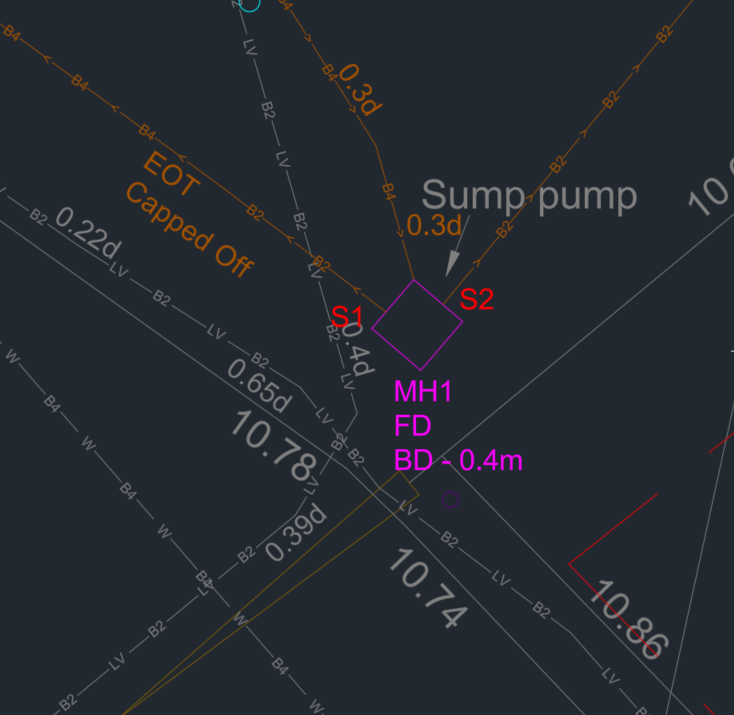
Each recording has a section number corresponding to it (shown as S##).
Each CCTV drawing has 'S##' numbers next to each run, which corresponds to the section in the table above.
In the example, you can see 'S1' and 'S2'. These correspond to Section 1 and Section 2 in the table above.
Need Help?
Stay updated with us:
How Can SolidPoint Help Your Project?
At SolidPoint, we are passionate about providing accurate and efficiently collected data for our clients and have worked on numerous projects across the UK. If you are looking to commission a survey in your next project, please don’t hesitate to Get in touch with a member of our friendly team to discuss your requirements and get a free quote.
Alternatively, you can call us on 01332 898350 or email us at projects@solidpoint.co.uk for more information on our services. We look forward to hearing from you!
Give us a call on
Request a Free Quote






Trusted Suppliers for: